Meeting sidekick for the Mac

The meeting sidekick nobody on the call can see.

Jungi lives in your menu bar. It follows your live calls, keeps track of what you've been asked and what's on the table, and checks it against what you already know about the client. It runs on your Mac. Nothing leaves it. And it never shows up on a screen share.

Invisible to screen sharing Runs on your Mac No bot on the call

Share your whole screen. They still won't see it.

The panel is blocked from screen capture by macOS itself. Not hidden behind a window, not minimised. Blocked. Share your screen in Zoom, Meet or Teams, record the call, take a screenshot. Jungi is not in the frame. Same for anyone recording on their side.

What you see
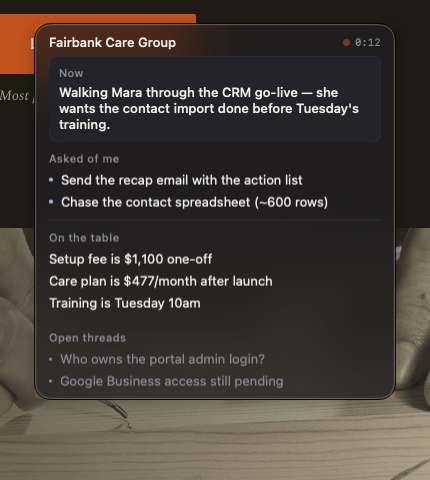
Your screen: the Jungi panel sitting over a webpage during a call
What they see on the share
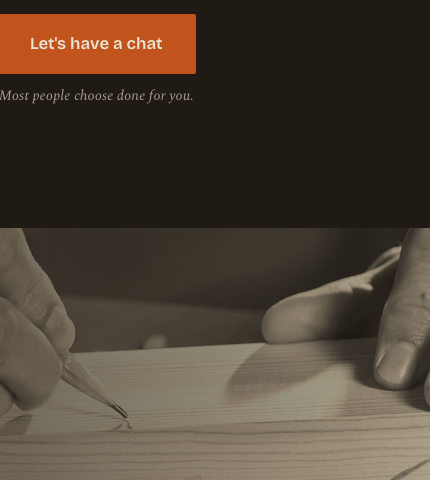
The same screen as captured by screen sharing: the webpage, no panel
Same screen, same moment. Left is a normal screenshot of your Mac. Right is what screen sharing captures.

Notetakers give you the notes after the call.
Jungi helps you during it.

Every notetaker sends a bot into the meeting, uploads the client's voice somewhere, and hands you a summary once it's too late to use. Jungi works the other way round.

๐Ÿชž

No bot on the call

Nothing joins. Nothing announces itself. The other side talks the way they always do. Jungi listens through your own mic and your Mac's audio, like a colleague sitting next to you.

๐Ÿ”’

Nothing leaves your Mac

Transcription, understanding and memory all run on your machine. No cloud, no account, no uploads. Pull the Wi-Fi out mid-call and it keeps going.

๐Ÿ‘

A glance, not a transcript

A small glass panel that answers one question: where do things stand right now. Same four sections, always in the same place.

The panel

During a call the panel sits over whatever you're working on and updates itself every few seconds. Anything resolved fades out and lands in the session record.

  • Now. A line or two on where the conversation is at.
  • Asked of me. What they've asked you for and what you've promised. Short and to the point.
  • On the table. The facts as they come up. Prices, dates, names, decisions.
  • Open threads. Questions raised and not yet answered.
The Jungi panel during a live call showing Now, Asked of me, On the table and Open threads
Live call. The four sections.

It remembers the details so you don't have to.

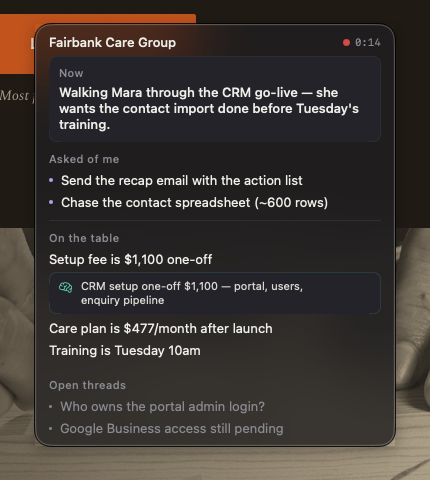
The client mentions a price, a date, a promise. Jungi has already checked it against your notes and past sessions. A green card appears under the fact with the exact line it matched. If what they said doesn't line up with what you agreed, you see it while you can still say something.

A memory match: the fact 'Setup fee is $1,100 one-off' with a green card quoting the matching line from your notes
Heard on the call, matched to your notes
  • Checked live. Everything said on the call is compared with the client's notes, attachments and memory.
  • Word for word. The green card quotes your actual line, not a rewording.
  • Gets better every call. Each session adds to the client's memory, so the next call has more to match against.

Spaces

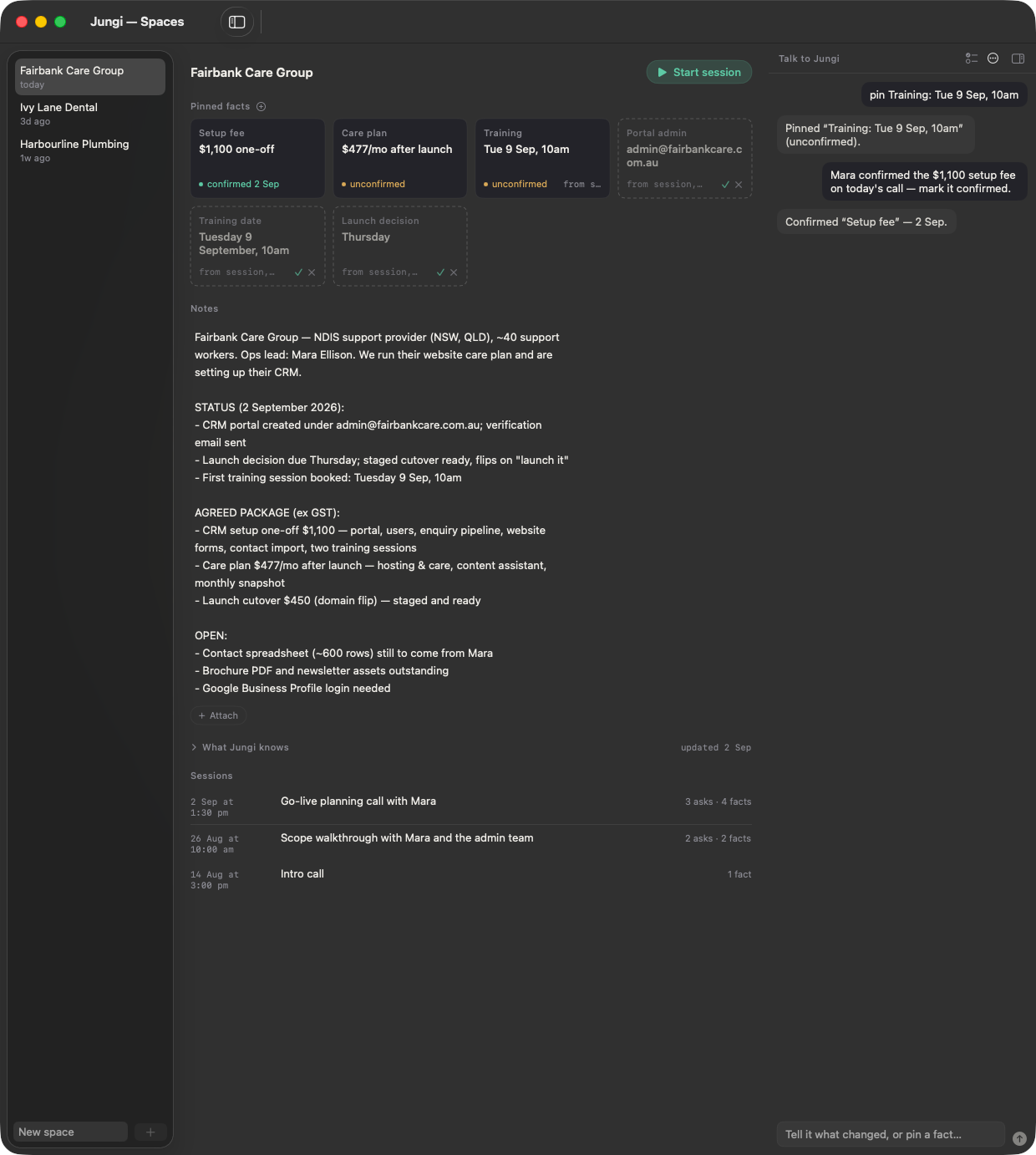
A space is whatever you want Jungi to have in mind. A client, a project, a job interview. Your notes, the documents that matter, and what it has learned so far. It doesn't matter if you're on a video call, on the phone or in the room with them. Your own notes are the source of truth.

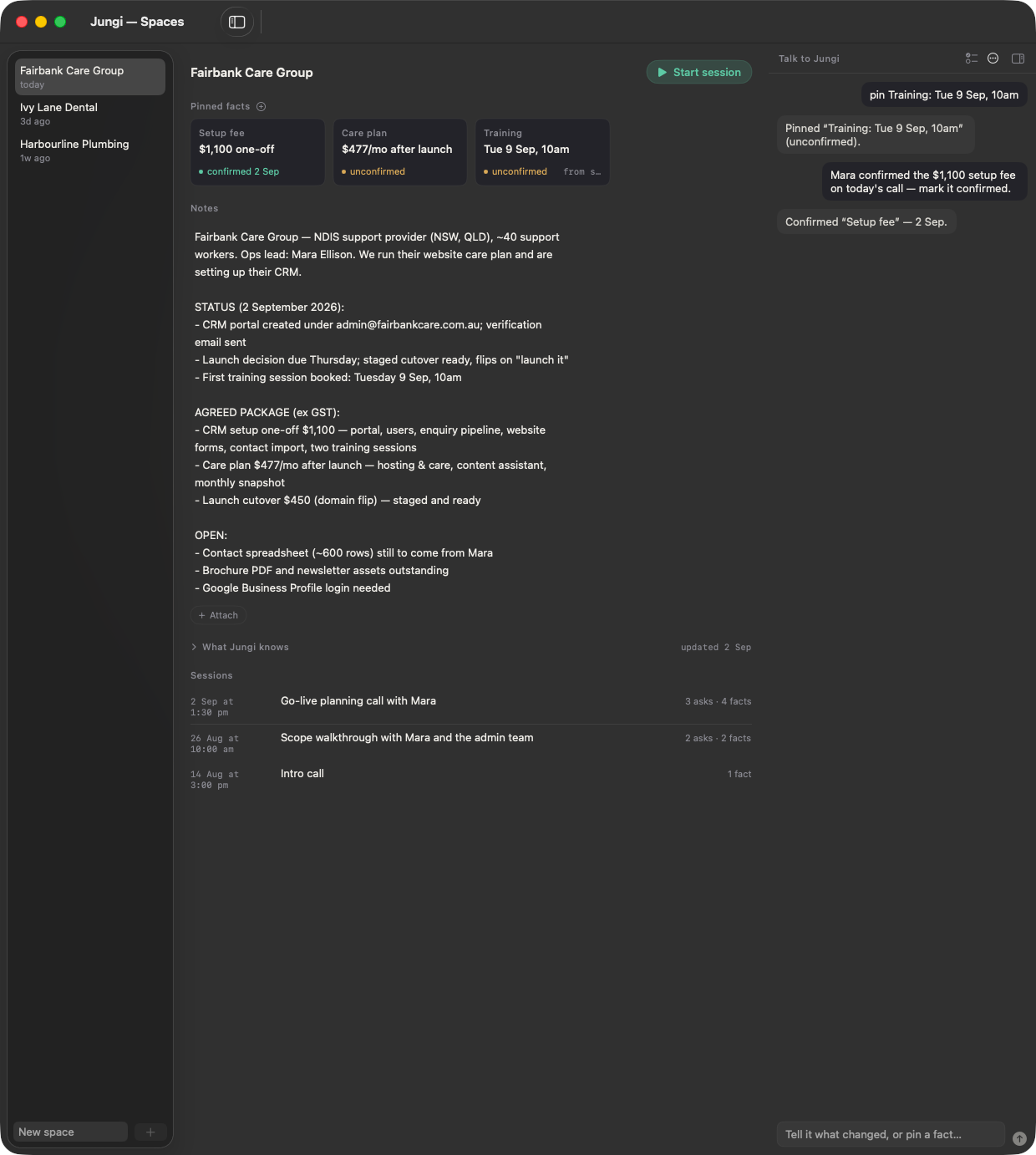
A space: sidebar of clients, pinned fact cards, notes, memory, session list and the Talk to Jungi pane
Cards, notes, memory, sessions, and Talk to Jungi on the right

Pinned facts

The things that have to stay true. Prices, dates, who owns what. A card only goes confirmed when you mark it confirmed. Until then it's โ— unconfirmed, so you always know which is which.

Talk to Jungi

Tell it what changed in plain English and it updates the notes. The changed lines flash green. Undo is one click. Ask it to review the notes and it tells you what looks out of date.

Memory that builds up

After every call a digest gets merged into the client's memory: where things stand, commitments, key facts, open threads. Next call, all of it is there to match against.

The session record

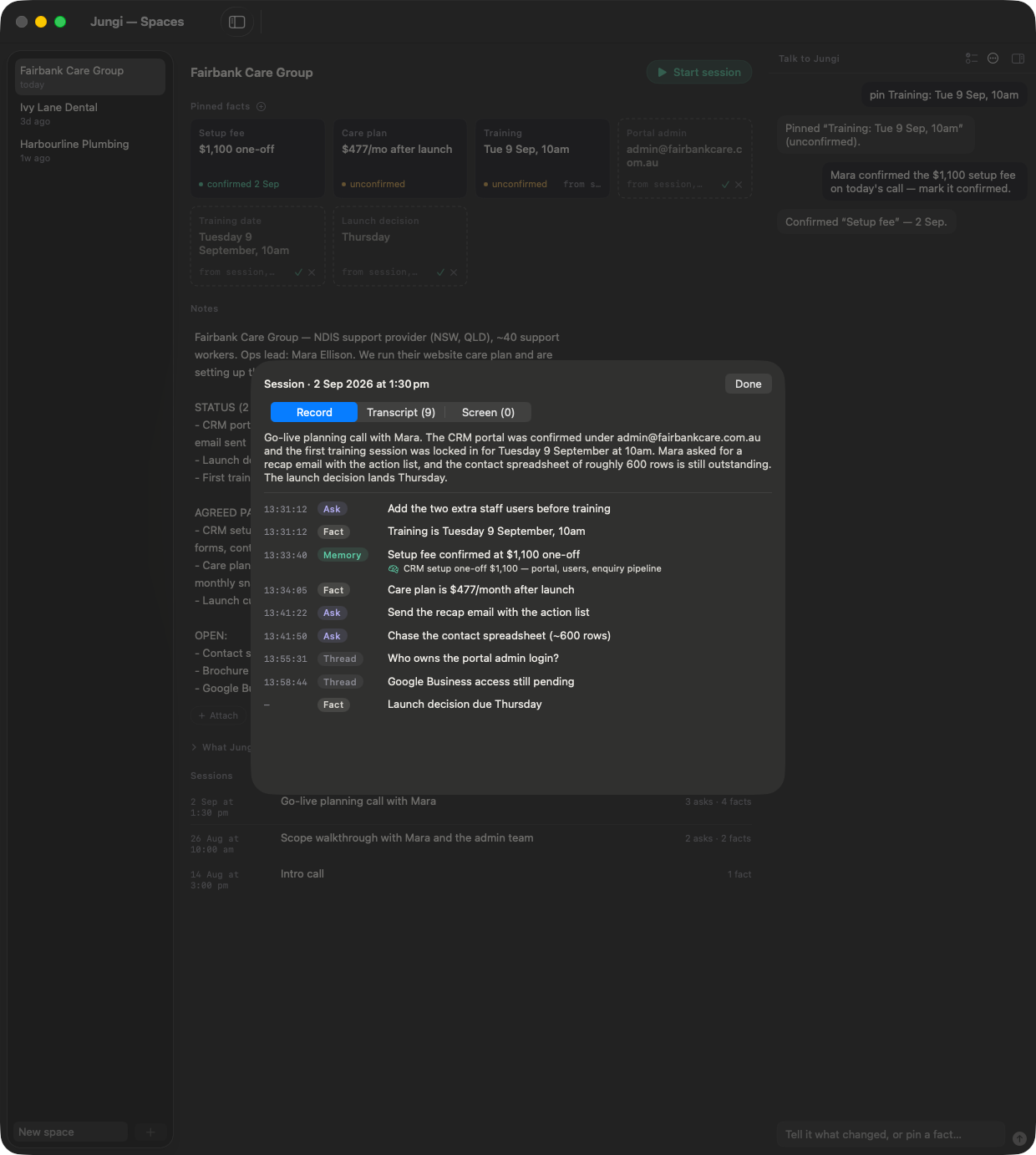
Every call keeps a summary and a timed list of entries tagged Ask, Memory, Fact and Thread. The full transcript sits behind a tab.

Quick commands

TypeResult
pin Setup fee: $1,100 one-offAdds an โ— unconfirmed card. No AI involved, it just does it.
confirm Setup feeMarks it confirmed with today's date.
unpin Setup feeRemoves the card.
anything elseUpdates the notes. If you phrase a card change naturally ("Mara confirmed the fee"), Jungi works out what you mean and shows it to you before applying it.

Jungi suggests. You decide.

Nothing goes into the record without you. After a call Jungi can suggest up to three cards, shown faded with a dashed border so they're clearly not real yet. Tick one and it becomes a card, with the session it came from noted on it. Cross it and it's gone. Suggestions are never saved, never shown on the panel, and never matched against until you tick them.

Suggested cards: three faded, dashed proposals from the last call next to the real pinned cards, each with a tick and a cross
Suggestions from the last call. Tick to keep, cross to drop.

Start, glance, stop.

Pick the client

Their notes, attachments and memory come with the space.

Start

Choose Ears (your mic plus the call audio) and, if you want, Eyes (the window you're looking at). Permissions are asked here, the first time.

Glance

The panel keeps Now, Asked of me, On the table and Open threads current while you stay in the conversation.

Stop

The red dot goes. Capture stops. A digest is written into the session record.

It adds up

The digest merges into the client's memory. Next call starts with more.

The session record: a summary and timed entries tagged Ask, Memory, Fact and Thread
After the call: the session record

What it does and doesn't do.

Does anyone on the call see it?No. Nothing joins the call and the panel is blocked from screen capture by macOS. Share your whole screen and it's still not there.
Does anything get uploaded?No. Speech to text, understanding and memory all run on your Mac. It works with the network off. No account, no server, no copy anywhere else.
Which call apps?All of them. It listens to the Mac's own audio, so Zoom, Meet, Teams, FaceTime or a phone call through the Mac all work. Nothing to install per app.
Where's my data?One database file in your Library folder. Delete a session, a client, or the file. It's gone.
Who said what?Your mic is "me", the call audio is "them". Split at the source, not guessed afterwards.
What does it ask macOS for?Microphone, and Screen & System Audio Recording (that's how macOS lets an app hear call audio). Asked on your first call, with the reason, never at install.

People whose calls carry the details.

๐Ÿ’ผ

Consultants and agencies

Ten clients, each with their own prices, scope and promises. One space each, so nothing blurs together.

๐Ÿค

Founders and account leads

Renewals, negotiations, boards. They mention the June number, you have the June number.

๐Ÿง‘โ€โš•๏ธ

Health, legal, finance

Anywhere a cloud notetaker turns into a compliance conversation. On your Mac means that conversation doesn't happen.